BC
Broadcast Control Apps
Standalone production tools. Buy once. Download. Use forever.
BC Toolbox

Production apps that solve show-day problems.

Practical standalone tools for live producers, directors, camera operators, and crews. No app subscriptions. No enterprise contracts. Buy the tool, unlock it with the activation key from your purchase email, and put it to work on show day.

Explore Apps Buy once. Use forever.
Now available: Maverick Control and Maverick Remote Control.
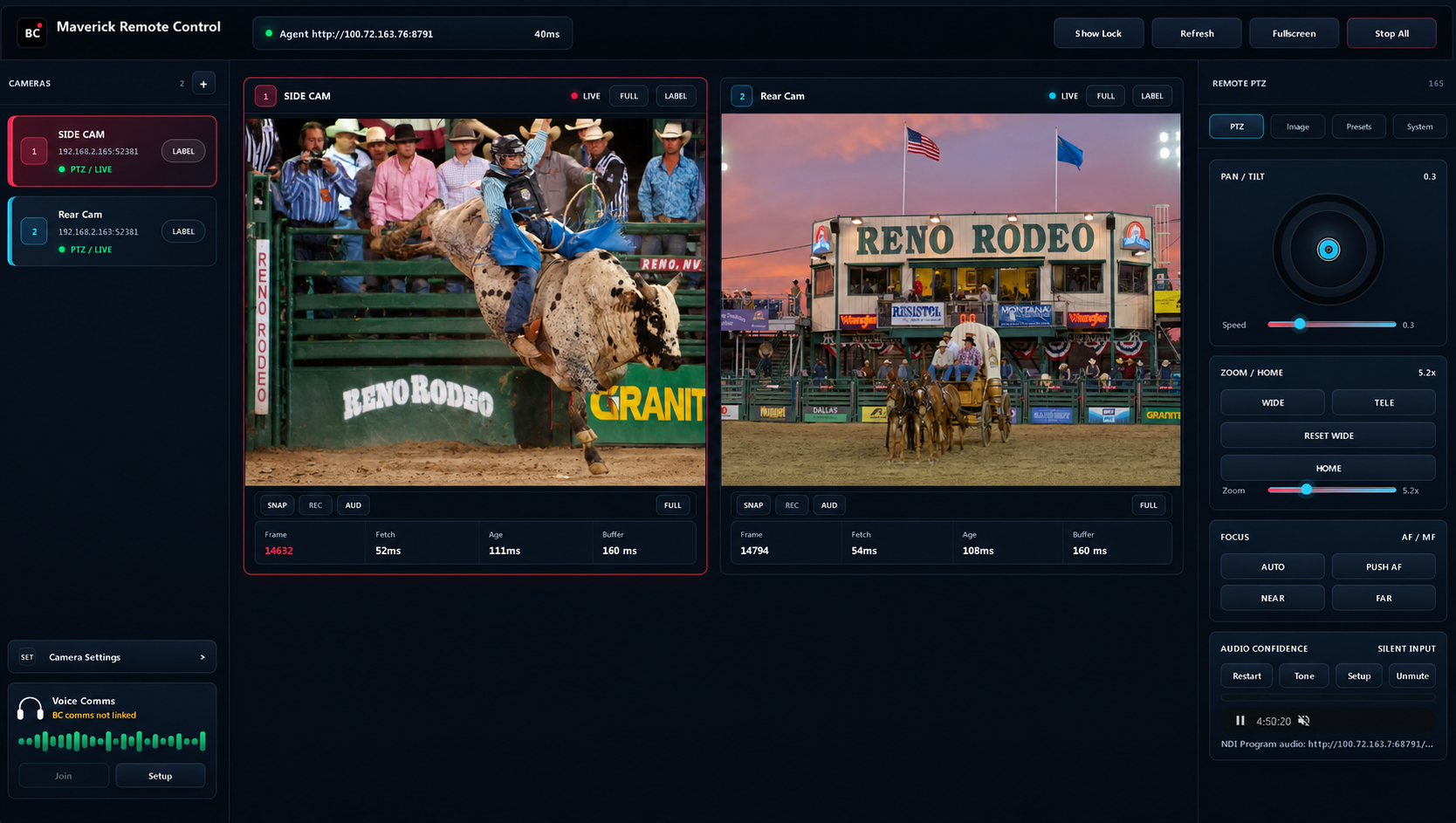
Maverick Remote Control PTZ preview
USB Joystick
Remote PTZ
Motion PTZ Beta
Program Audio
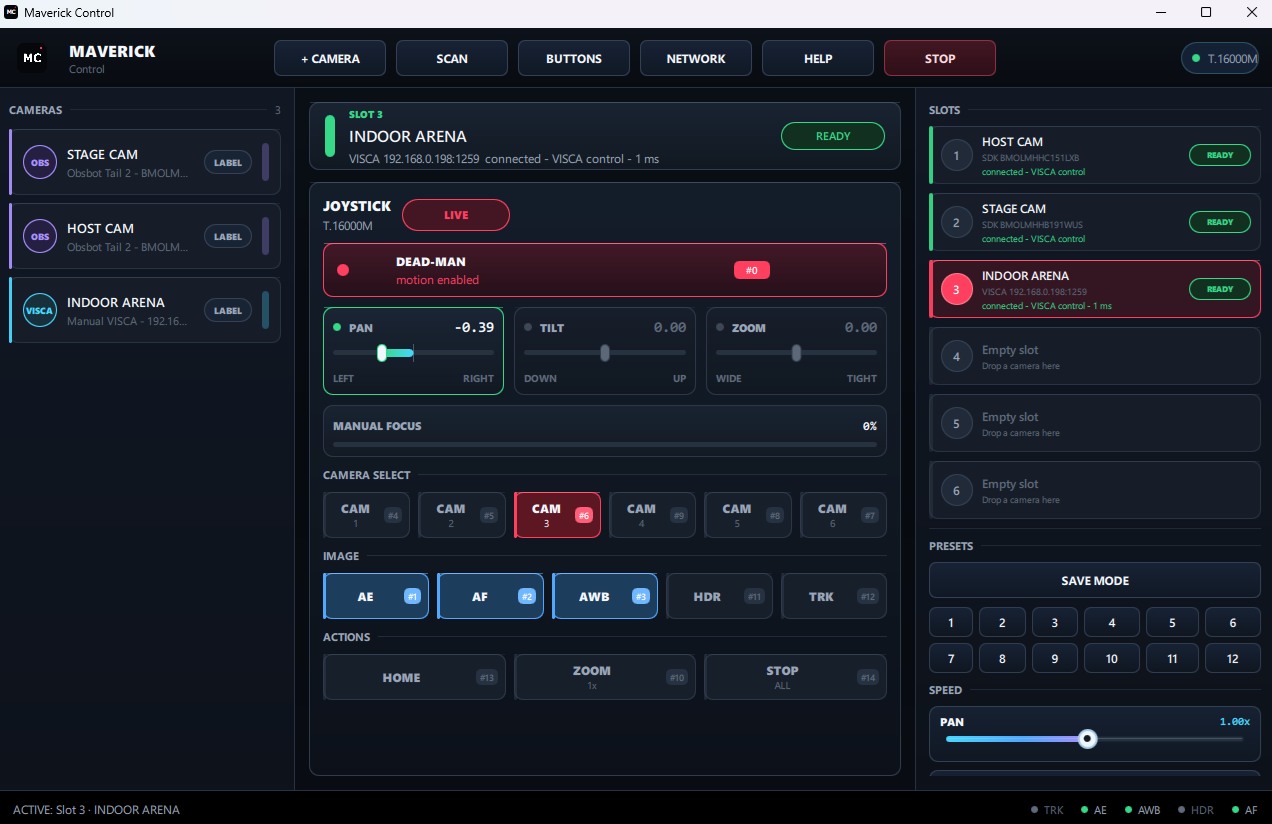
Maverick Control desktop joystick software
MC

Maverick Control

Local joystick PTZ camera control
$9.99 one-time
VISCA/IP USB joystick Windows 10/11 Mac beta Camera labels

Turn a compatible USB joystick into a practical PTZ controller for live venues. Scan or manually add VISCA/IP PTZ cameras, label each shot, drag cameras into slots, and operate locally while watching your own camera preview monitors.

Built for the person actually moving cameras. Big controls, named camera slots, speed trims, presets, and a STOP button when the show gets spicy.
Feels like a real PTZ desk, not a science project. Plug in a joystick, slot your cameras, and keep your hands off clunky web menus during live moments.
Small price, real event-day utility. Buy once for local VISCA/IP camera control at games, worship services, schools, venues, and streams.
1
Use a USB HID/DirectInput joystick on Windows.
2
Add compatible VISCA/IP PTZ cameras by scan or IP.
3
Operate locally with your own camera preview monitors.
Setup guide
Maverick Control currently ships for Windows 10/11 64-bit PCs. A separate Mac x64 beta build is available for beta testers and has its own licensed download. Recommended controller: a USB HID/DirectInput joystick such as the Thrustmaster T.16000M. Xbox/PlayStation-style controllers need exact-device testing before show use. Cameras should support VISCA/IP on the local network; Maverick is not OBSBOT-only. The purchase email includes an activation key for one package download and one licensed computer activation; beta access codes follow the same one-download rule. No BC subscription is required for local joystick control. SKU: BC-MAVERICK-CONTROL
Maverick Remote Control browser operator console
MRC

Maverick Remote Control

Browser-based remote camera operator
$29.99 one-time
Windows venue agent Mac venue agent Modern phone/tablet operator Venue agent package iPad motion control beta Touch + browser gamepad One remote op BC comms optional

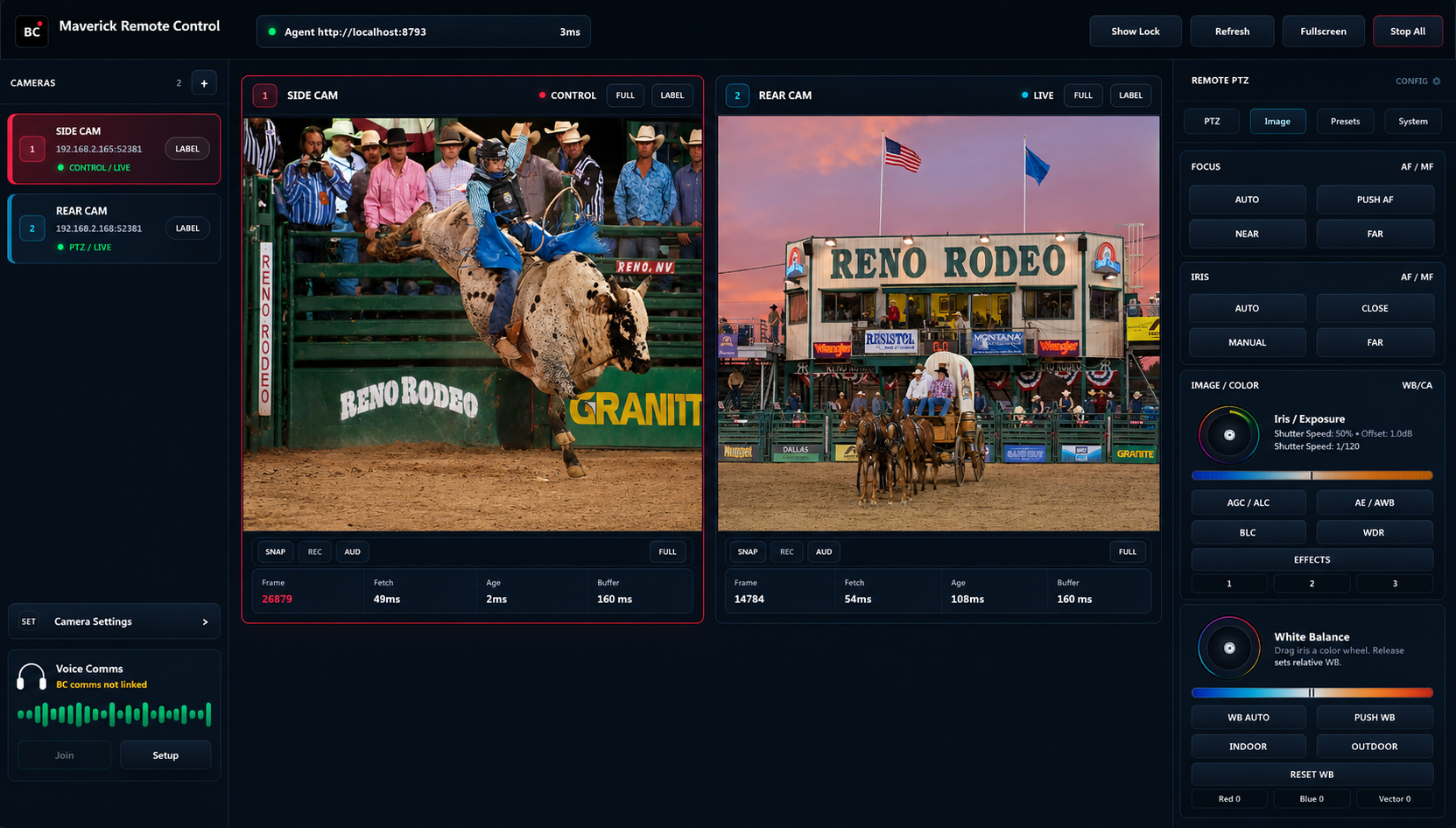
Hire or invite a camera operator anywhere in the world. A venue computer runs the agent beside vMix, OBS, Livestream Studio, TriCaster, or another switcher. The remote op opens a browser, sees live previews, hears NDI/AUX program audio, and controls PTZs.

Your camera op does not have to be in the building. Send one secure link and let a trusted operator run PTZ from a browser instead of remoting into your show PC.
Made for modern phones, iPads, and tablets. Touch joystick, live previews, and compact controls adapt for recent iPhone, Android, iPad, and tablet screens.
Motion PTZ beta turns the tablet into the controller. In full camera view, tap Motion, set neutral, then gently steer a selected PTZ by tilting an iPad, iPhone, or compatible Android device.
Confidence for the whole remote workflow. Venue agent, previews, program audio confidence, optional BC comms, and one active remote-op session.
1
Invite a remote operator anywhere in the world.
2
Monitor camera previews and program audio confidence.
3
One venue agent. One secure remote session.
Setup guide
The purchase email includes an activation key for one venue-agent package download and one licensed venue computer; beta access codes follow the same one-download rule. The Windows venue-agent launcher includes its runtime; the current Mac launcher requires Node.js 18 or newer. Remote operators can use modern Chrome, Edge, or Safari on desktop, iPad/tablet, or recent iPhone/Android phones with the on-screen joystick. The UI targets current standard-phone, Pro Max/Ultra/XL phone, iPad, and tablet layouts. Motion PTZ is a fully operational beta control mode for compatible motion-sensor phones and tablets: open a camera FULL, tap Motion, set neutral, and steer by gently tilting the device. Optional USB/Bluetooth controller support depends on browser Gamepad API support. MRC remote PTZ, previews, and program audio are standalone. BC voice comms require a Producer or Teams workspace. SKU: BC-MAVERICK-REMOTE

What You Need

Plain-English requirements before buying or installing.

Computers

Maverick Control currently ships for Windows 10/11 64-bit PCs. Maverick Remote Control ships one venue-agent package with a Windows bundled launcher and a Mac launcher; the remote operator page runs in a modern browser on desktop, iPad/tablet, or recent iPhone/Android phones.

Recommended: modern dual-core CPU or better, 8 GB RAM, stable ethernet or strong WiFi. The current Mac MRC launcher requires Node.js 18 or newer. Remote-op layouts target current standard-phone, Pro Max/Ultra/XL phone, iPad, and tablet screen sizes. iPads and tablets are a strong choice for longer sessions on good networks with current browser/OS updates, and the Motion PTZ beta is especially fun for tablet operators who want to steer the selected camera by gently tilting the device.
Joysticks

Maverick Control uses Windows DirectInput, so a USB HID/DirectInput joystick is recommended. The Thrustmaster T.16000M is the safest first controller. MRC browser operators can use mouse/touch controls or an optional browser-supported USB/Bluetooth gamepad.

Other USB joysticks can work when the operating system exposes axes and buttons cleanly. Xbox and PlayStation-style controllers should be tested before a show because Windows/browser mappings can vary. Custom button mapping may be needed.
Cameras and Network

Designed for VISCA/IP PTZ cameras on the same venue network as the control computer. Maverick is not OBSBOT-only.

Practical targets include OBSBOT Tail-series network cameras, Minrray-style VISCA/IP cameras, and other PTZ cameras that answer compatible VISCA/IP commands. Wired gigabit camera LAN is strongly recommended. Remote operation needs stable venue upload for previews and program audio.
Updates

Licensed buyers unlock one package download from the Apps page with their activation key. Beta testers can use the beta access code they were given. Contact Broadcast Control support if a replacement download needs to be reset.

Automatic installed-app updates are not built in yet, so we are not advertising auto-update support.

More Standalone Apps Coming

Future standalone app ideas only: practical show-day tools that sit beside the full Broadcast Control subscription platform.

C
Camera Tools

Standalone PTZ control, remote camera operation, joystick mapping, and camera setup utilities.

Live now
AI
AI Footage Logger

Analyze event recordings, tag speakers, find key moments, and create searchable production notes.

In design
H
Auto Highlights Cutter

Detect show moments during a live event, cut short clips, and prep social posts while the broadcast is still happening.

Coming next
Buy once

Stripe Checkout handles the one-time app purchase. Maverick Control and core MRC remote PTZ do not require a BC subscription.

Unlock the installer

The checkout email sends the activation key and app download link. That key unlocks one package download and one licensed computer activation; beta access codes work the same way. Support can reset the download only when a real replacement is needed.

Add BC when needed

Use MRC standalone for remote PTZ, previews, and program audio. Add a Producer or Teams workspace when the remote operator also needs BC show voice comms.